User Guide
How to sign in, choose scientific software, launch a costed environment, work in it, and shut it down - on numen-gcp.clovertex.net.
1 · What Numen is
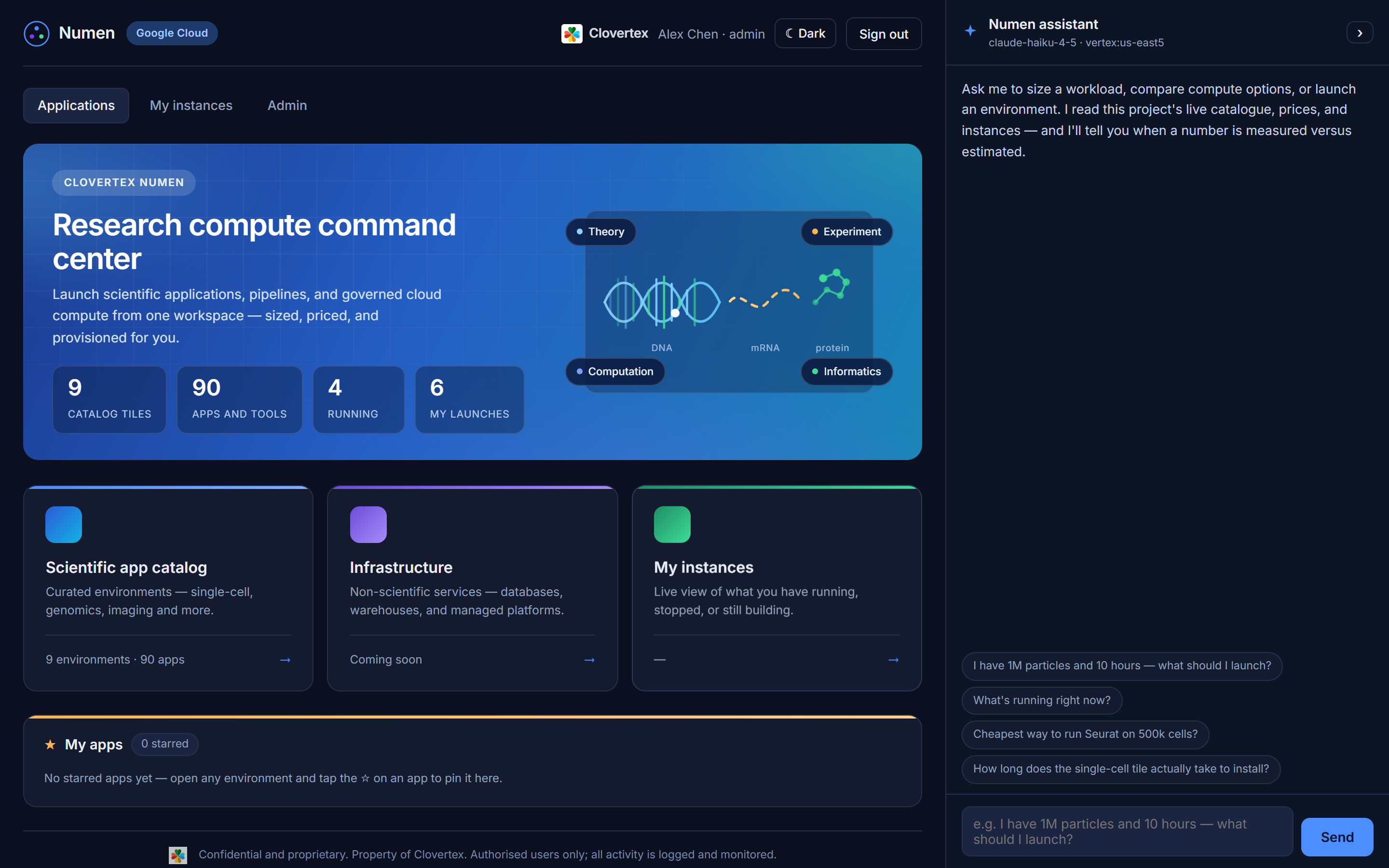
Numen turns "I need a machine with RELION on it" into a running, costed environment in a few clicks - without a ticket, a Terraform file, or a conversation about instance types.
You pick applications. Numen works out the machine, shows you what it will cost, builds it, installs the software, and tells you when it is ready. When you are finished you stop it, and the billing stops with it.
2 · How Numen thinks
Three ideas explain most of the interface.
You choose software, not hardware
Every application carries its own requirements - cores, memory, disk, how long it takes to install. Select several and Numen adds them up and proposes a machine that fits all of them. You can override it; you rarely need to.
A tile is a working environment, not a folder
Tiles group software that people genuinely use together. Choosing a tile does not commit you to everything in it - inside, you tick only the tools you want.
Nothing runs that you did not ask for
An environment exists because you launched it, and it costs money only while it is running. Stopping it keeps your disk and stops the meter.
3 · Signing in
Go to numen-gcp.clovertex.net. Pick your account from the list and enter the password your Clovertex contact gave you.
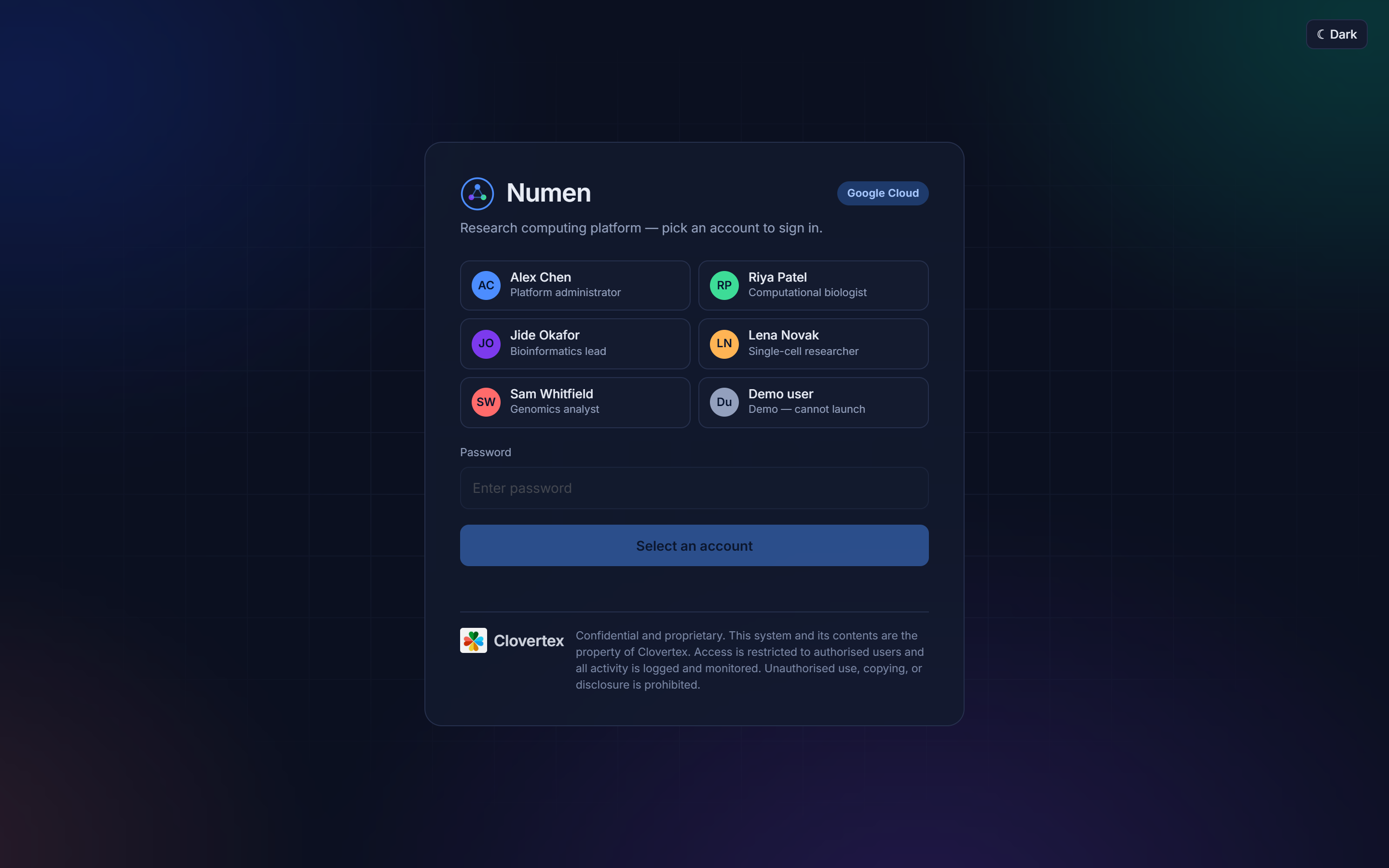
| Account type | Can launch | Can stop / delete | Admin console |
|---|---|---|---|
| Administrator | Yes - any size | Yes | Yes |
| Researcher | Yes - real sizing | Yes | No |
| Demo | Yes - capped | No | No |
4 · Demo account
The demo account exists to let you prove the platform works without being able to spend meaningful money. Sign in as Demo user with the password your Clovertex contact provided.
What a demo account can do
- Browse the whole catalog - every tile, every application, all the sizing and cost information
- Launch a real instance. Not a mock-up: a genuine Google Cloud VM, with the software really installed on it
- Connect to it and use the software
- See its own instances in My instances
What is capped, and why
| Guardrail | Value | Why |
|---|---|---|
| Machine size | e2-standard-2 - 2 vCPU / 8 GB, about $0.067/hr |
Fixed regardless of what you select, so a demo cannot become an expensive mistake |
| Disk | Capped at 50 GB | Same reason |
| Idle stop | 30 minutes | The VM stops itself once nobody is using it. Nothing is left running by accident |
| Stop / delete | Not available | Demo accounts cannot destroy resources. The idle stop reclaims them instead |
e2-standard-2 the heavier applications will install and run, but slowly.
That is the guardrail you are seeing, not the platform's ceiling.What to demo on a capped instance
| Tile | On a demo instance |
|---|---|
| Transcriptomics and quantification | Ideal - 4 tools, installs in about 2 minutes |
| NGS data processing | Ideal - 9 tools, about 3 minutes |
| Cheminformatics | Good - RDKit and docking work fine at this size |
| Structural biology (PyMOL) | Good - light, and scriptable headless |
| Variant analysis | Workable - installs fine; real callers want more cores |
| Single-cell, Pipelines (RELION), Bioimage | Not representative - these want 8 vCPU and 32 GB |
5 · Anatomy of a tile
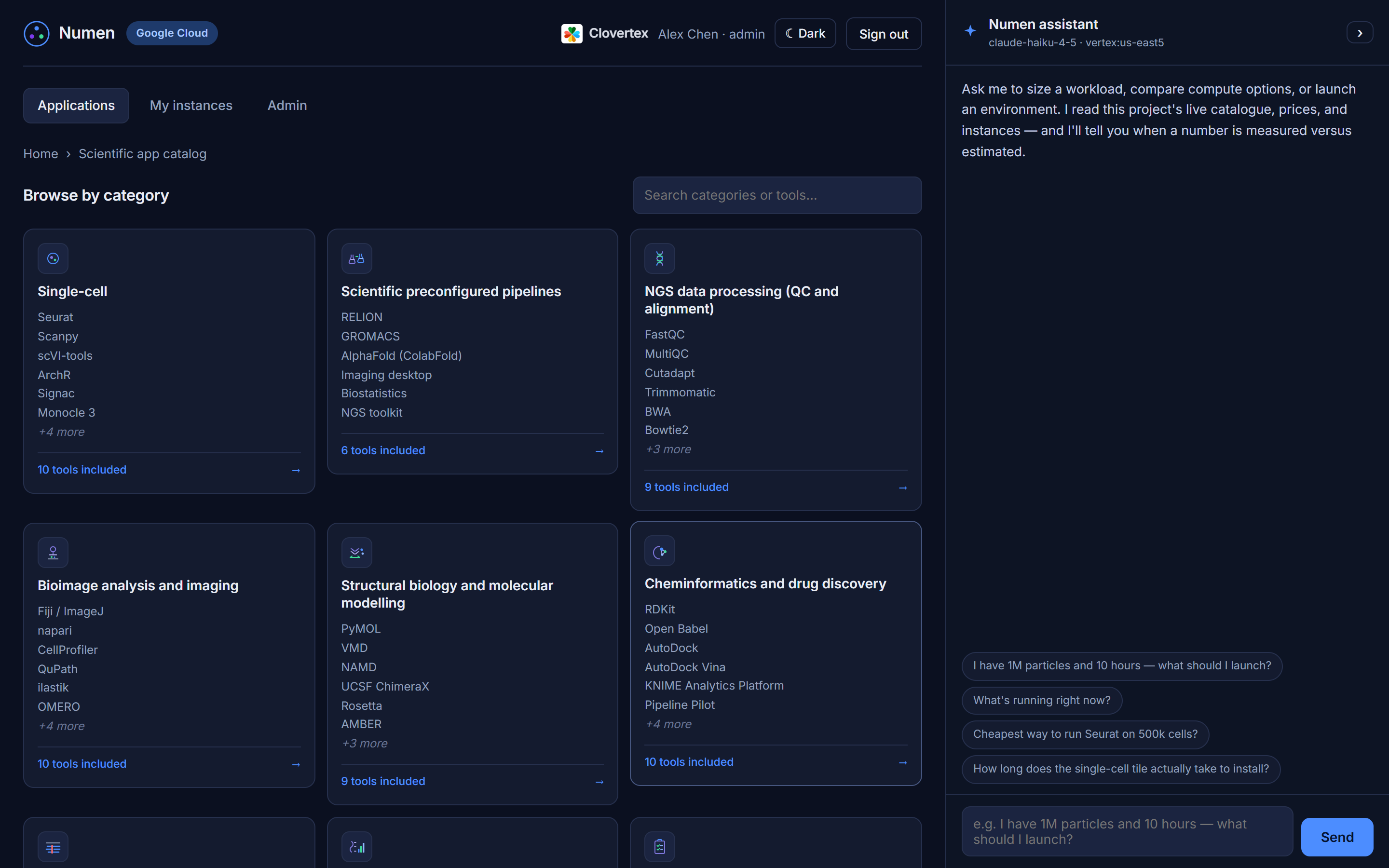
Open Scientific app catalog from the home page and you get the tile grid.
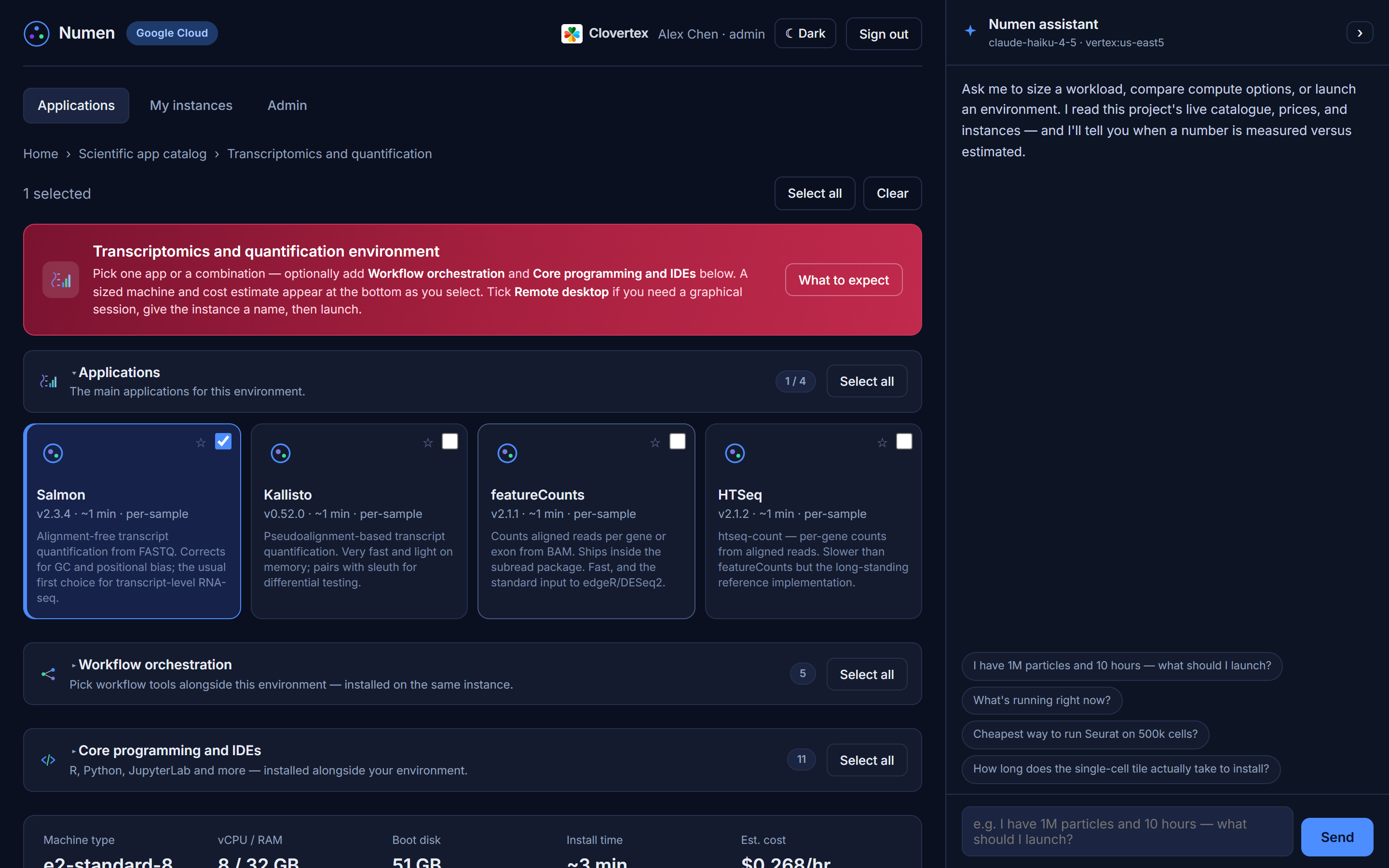
Inside a tile you see each application with its version and a short description of what it is for. Tick the ones you want. As you tick, the recommendation panel updates.
6 · Worked example - quantify RNA-seq reads
The fastest way to see the whole loop. About five minutes end to end.
1Open the catalog
From the home page, choose Scientific app catalog, then Transcriptomics and quantification.
2Select your tools
Tick Salmon and Kallisto - both quantify straight from FASTQ. Add featureCounts and HTSeq if you want the genome-alignment route too. All four together install in roughly two minutes.
3Check the recommendation
Numen proposes a machine and shows the hourly cost and install estimate. On a demo
account this is fixed at e2-standard-2; on a real account it reflects
what you selected.
4Launch
Give it a short name and press Launch. You are taken to the instance view.
5Wait for ready
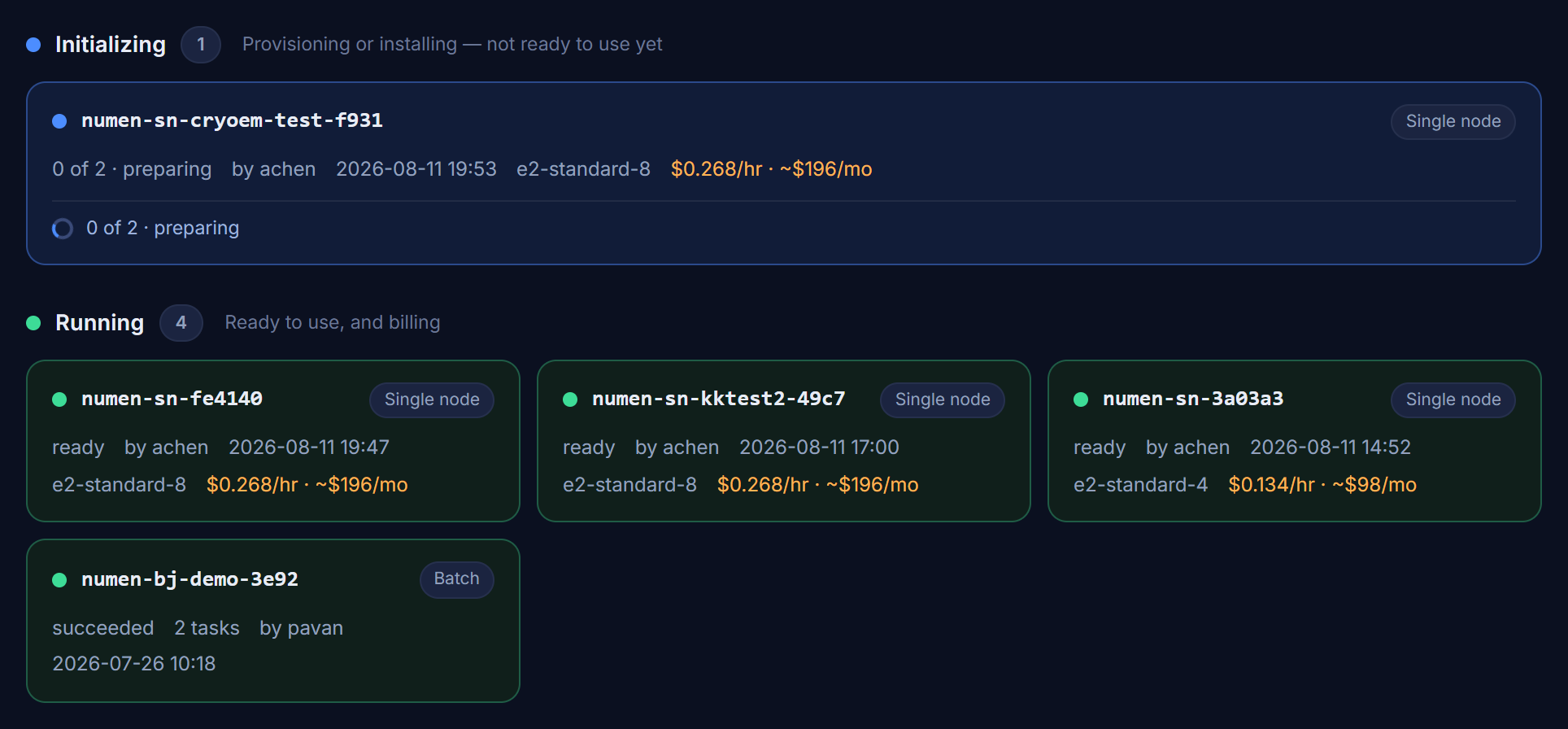
The card turns Running when the software is installed. Two minutes for this tile; a few tiles take much longer and say so up front.
6Use it
Connect (see Connecting) and the tools are on your path:
salmon --version
kallisto version
featureCounts -v
htseq-count --version7Stop it
On a real account, press Stop when you are done. On a demo account the machine stops itself after 30 idle minutes.
7 · What's in the catalog
Nine science tiles plus two shared sets. "Installable" is what Numen can deploy for you; the remainder are commercial or vendor-licensed products you would bring your own licence for, and they are listed so each tile states its real scope.
| Tile | Installable | Full tile install |
|---|---|---|
| NGS data processing (QC & alignment) | 9 of 9 | ~11 min |
| Variant analysis and genomics | 11 of 12 | ~17 min |
| Single-cell | 7 of 10 | ~65 min |
| Bioimage analysis and imaging | 6 of 10 | ~48 min |
| Cheminformatics and drug discovery | 5 of 10 | ~13 min |
| Transcriptomics and quantification | 4 of 4 | ~6 min |
| Clinical data management (EDC/CDMS) | 2 of 4 | ~5 min |
| Structural biology and molecular modelling | 1 of 9 | ~4 min |
| Shared - add to any environment | ||
| Workflow orchestration | 5 tools | Nextflow, Snakemake, Cromwell, nf-core |
| Core programming and IDEs | 11 tools | R, Python, JupyterLab, VS Code, Docker |
8 · Watching the cost
Cost is visible before you commit, not after. Ticking another application updates the proposed machine and the hourly rate immediately.
- Hourly rate - what the machine costs while running
- Running total - accumulates for as long as it runs
- Stopped - no compute charge; you keep only a small disk cost
9 · After you launch
| State | Meaning | Costing? |
|---|---|---|
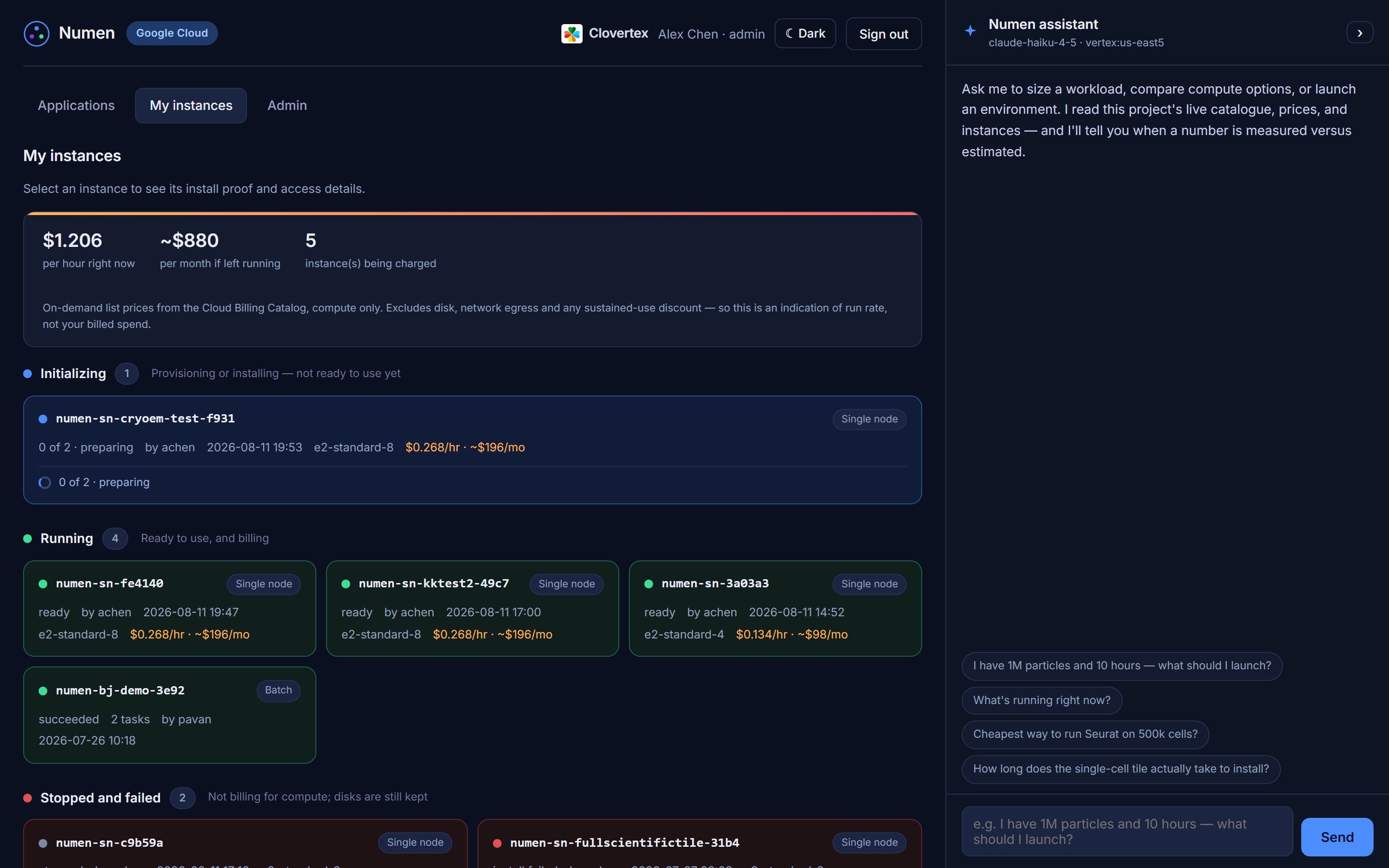
| Initializing | The machine is being created | Starting |
| Installing | Machine is up; software is being installed. Progress names the current app | Yes |
| Running | Ready to use | Yes |
| Stopped | Shut down; disk kept, so you can start it again | Disk only |
| Failed | Something went wrong - the card says what | No |
10 · Connecting
Command line
Every instance is reachable over Google's Identity-Aware Proxy. There is no public SSH port and no bastion host to configure:
gcloud compute ssh <instance-name> --zone us-central1-a --tunnel-through-iapRemote desktop
Some applications are graphical and have no command-line mode - Fiji, QuPath, ilastik, IGV and KNIME among them. Tick remote desktop when launching and connect with any RDP client. The tools appear in the Science menu.
10b · Batch jobs and GKE jobs - submit, watch, validate
Two of the four ways to run have no login: a Google Batch job and a GKE (Kubernetes) job run on workers that exist only while the job runs. You submit, watch the state, read the log in the panel, and collect the results from the outputs bucket. If you want a shell, launch a single-node machine instead.
Google Batch
- Tick the application, set Infrastructure to Batch - Google Batch job,
give it a short name suffix, Launch. The job (
numen-bj-<suffix>-<id>) appears at once in My instances as lane Batch. - Google provisions a worker (one to three minutes), runs the script, deletes the worker: queued -> scheduled -> running -> succeeded or failed.
- Click the row: state, machine, task counts, timed events, the outputs prefix, and the Cloud Logging link for the job's output.
- Validate: results are under
gs://numen-gcp-sandbox-outputs/<job>/(gcloud storage ls gs://numen-gcp-sandbox-outputs/numen-bj-.../). A job that succeeded is also recorded as job evidence the assistant can quote.
GKE - a container job on the Autopilot cluster
Only applications whose maintainers publish a container image run here today: Seurat (runs the PBMC 3k tutorial workflow) and GROMACS (a version check, or the command you pass).
- Tick one of those, set Infrastructure to GKE - Kubernetes job
(Autopilot), add a suffix, Launch. The job
(
numen-kj-<suffix>-<id>) appears in My instances as lane GKE. - Autopilot provisions a node for exactly the CPU and memory requested (one to three minutes), pulls the image (a minute or two the first time), runs the container.
- Click the row: state and conditions, image and resources, the pod (its phase and, if waiting, why), the events, and the container log read back through the Kubernetes API. Refresh re-reads it.
- Validate: a Seurat run ends with
NUMEN_GKE_SEURAT_SUCCEEDED cells=... clusters=... markers=.../12in the log and writessummary.json,clusters.csv,markers.csvand the Seurat object undergs://numen-gcp-sandbox-outputs/<job>/. - Queued with no pod for more than five minutes means the cluster rejected the pod template; the Events in the panel say why. Delete job stops a running job or removes a finished one; outputs stay.
Slurm clusters - the one with a login
Build a cluster from New cluster... (head node plus compute groups; a shared
filesystem at /scratch if you pick one). Once it is running, log in to the
head node as yourself over IAP and OS Login, submit with sbatch, watch with
squeue; finished jobs stay in My instances because they are read from the
cluster's accounting.
gcloud compute ssh <head-node> --zone us-central1-a --tunnel-through-iap11 · Shutting down
- Stop - shuts the machine down, keeps the disk. Compute billing ends. Start it again later.
- Delete - removes the machine and its disk. Nothing is kept.
Every instance also stops itself when it goes idle. Idle means no logged-in user, no open SSH or remote-desktop session, and no CPU or disk activity. Any one of those resets the clock, so a long job, a download, or a session you are reading but not typing into all keep the machine awake - you do not lose work by walking away mid-analysis. The default is two hours; demo accounts are fixed at 30 minutes.
An idle-stopped instance is stopped, not deleted: the disk and everything installed on it are kept, and you start it again from My instances. The instance card says it stopped itself, so a machine that is off is never a mystery.
12 · FAQ
Is the demo a simulation?
No. It provisions a real Google Cloud VM and really installs the software. The only differences are the size cap and the idle stop.
Why is my demo instance slower than expected?
Because it is capped at 2 vCPU / 8 GB regardless of what you selected. A real account is sized to the work.
My instance disappeared.
If it is a demo instance, it stopped itself after 30 idle minutes. That is the guardrail working. Launch another.
Can I install something not in the catalog?
On a real account, yes - it is your machine once it is running. Anything you add by hand is not reinstalled if you rebuild, so tell your Clovertex contact if it should be in the catalog permanently.
Where does my data go when I stop an instance?
Stop keeps the disk and everything on it. Delete does not. Anything you cannot lose should be copied to Cloud Storage before deleting.
Why do some applications say "not installed"?
They are commercial or vendor-licensed - cryoSPARC, MaxQuant, Cell Ranger, ChemDraw and others. They stay listed so each tile states its real scope, and you can bring your own licence.
13 · Glossary
- Tile
- A group of scientific applications that are used together. You pick individual tools inside it.
- Instance
- One virtual machine that Numen built for you, with your chosen software on it.
- Recommendation
- The machine Numen proposes based on what you selected - cores, memory and disk.
- e2-standard-2
- A Google machine type: 2 vCPU and 8 GB of memory. The fixed size for demo accounts.
- Idle stop
- A demo safeguard: the machine stops itself after 30 minutes with no user, no connection and no CPU work.
- IAP
- Identity-Aware Proxy - how you reach an instance without any public SSH port.
- Remote desktop
- A graphical session for applications that have no command line. Requested at launch.
- Single node
- One machine. Most work fits here.
- Cluster
- Several machines for one job - needed only for software that genuinely splits work across nodes, such as RELION.